
Welcome back! Let’s continue learning how to upload files to GDrive automatically using Python.
To recap, we’ve learned in Part 1 the basics of establishing a connection to Google APIs and using these APIs to do a simple file upload in GDrive.
But now, let’s put everything together in one cohesive script.
Steps covered in Part 2:
- Step 3. Customize the GSheet formatting. Click here
- Step 4. Upload multiple files all at once. Click here
- Step 5. Run the whole script and see the results!
Step 3: Customize the Google Sheet formatting
GSheets APIs offer numerous ways to format Google spreadsheets however you want. For this project, we’ll cover how to freeze and delete columns and rows.

Freezing Columns and Rows
For the following method, I made used of the gridProperties field to set the frozenRowCount to Row 1 and frozenColumnCount up to Row 2.
def freezeCells(spreadsheet_id,sheet_id):

    my_range = {
        'sheetId': sheet_id
    }
    requests = [{
            "updateSheetProperties": {
                'properties': {
                    'sheetId': sheet_id,
                    'gridProperties': { 'frozenRowCount': 1,'frozenColumnCount': 2}
                },
                'fields':
'gridProperties(frozenRowCount,frozenColumnCount)'
            }
        }
    ]

    body = {
        'requests': requests
    }
    response = SS_SERVICE.spreadsheets().batchUpdate(spreadsheetId=spreadsheet_id, body=body).execute()
    print('{0} update.'.format(len(response.get('replies'))));
Deleting Columns
For the following method, I made use of the deleteDimension request to delete columns 8 to 26 of the file (Google Sheets has 26 columns by default).
def deleteCells(spreadsheet_id,sheet_id):

    my_range = {
        'sheetId': sheet_id
    }
    requests = [
    {
      "deleteDimension": {
        "range": {
          "sheetId": sheet_id,
          "dimension": "COLUMNS",
          "startIndex": 8,
          "endIndex": 26
        }
      }
    }
    ]

    body = {
        'requests': requests
    }
    response = SS_SERVICE.spreadsheets().batchUpdate(spreadsheetId=spreadsheet_id, body=body).execute()
    print('{0} update.'.format(len(response.get('replies'))));
Putting everything together: Loop Google Sheets
The loopGSpreadsheet method goes through all the sheets and apply the two (2) customizations we made: freezeCells and deleteCells methods.
def loopGSpreadsheet(spreadsheet_id):
    sheet_metadata = SS_SERVICE.spreadsheets().get(spreadsheetId=spreadsheet_id).execute()

    sheets = sheet_metadata.get('sheets', '')

    for sheet in sheets:
        sheet_title = sheet.get("properties", {}).get("title")
        print("Processing ", sheet_title)

        sheet_id = sheet.get("properties", {}).get("sheetId")

        freezeCells(spreadsheet_id,sheet_id)

        column_count = sheet.get("properties", {}).get("gridProperties").get("columnCount")
        print(column_count, "columns")

        if column_count > 8:
            deleteCells(spreadsheet_id,sheet_id)
Step 4: Upload multiple files all at once
Now, let’s upload multiple folders to Google drive by creating the loopRosterUploadFiles method, which
The first part of the method is a simple for loop statement that goes through all items (for instance, sales reps) in the list.
It also checks if the folder for each item exists or not.
def loopRosterUploadFiles(reps):

    print("Creating files!")
    print(reps)
    count = 1

    for rep in reps:
        print('------')
        print(count, rep)
        count = count + 1
        output_rep = "Contacts List - " + str(rep)
        output_folder = OUTPUT_DIRECTORY+ output_rep

        # Check if Folder for rep exists
        if not os.path.exists(output_folder):
            print("Folder not found for", rep)
        print("Created folder for", rep)

   ....
The second part of the method does the following for each rep:
- Sets the filepath and filename based on the rep name and date
- Checks Google Drive if the folder for the rep exists:
folderInGDriveandcreateGDriveFoldermethods - Uploads the file to Google Drive in the right folder using the
writeToGDriveandgetFolderfromGDrivemethods - **Customizes the format of the Google Spreadsheet file using the
loopGSpreadsheetmethod
Notice how the last line covers the last three tasks. 🙂
def loopRosterUploadFiles(reps):
...
        # Set File Names
        rep_excel_file = QUARTER+ " Contact List - "+str(rep)+ " " + VERSION +".xlsx".strip()
        rep_excel_file_no_ext = QUARTER+ " Contact List - "+str(rep)+ " " + VERSION.strip()
        rep_excel_path = output_folder+"/"+rep_excel_file


        # Create folder if it doesnt exist yet
        if folderInGDrive(output_rep) is False:
            createGDriveFolder(output_rep,PARENT_FOLDER)
            print('Folder created for', rep)

        loopGSpreadsheet(writeToGDrive(rep_excel_file_no_ext,rep_excel_path,getFolderfromGDrive(output_rep)))
Step 5: Run the script and see the results!
Make sure that your configurations are correct:

If everything is set, run the script:
python3 uploadtoGDrive.py
The command line should look something like this:

Your parent Google Drive folder should look like this.
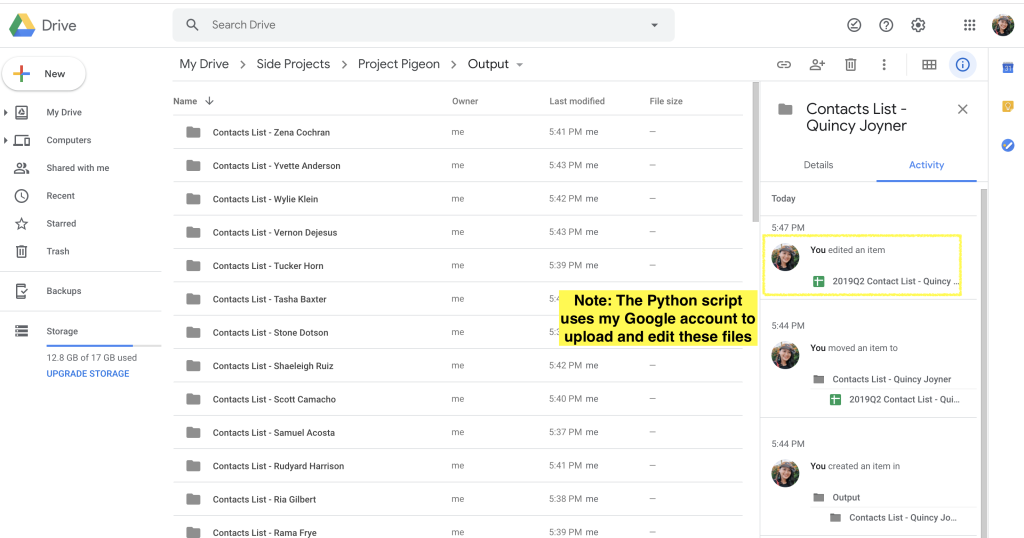
Feel free to play around with the whole script below. Here’s the github repo: py_pigeon
For the last part of the series, I’ll teach you how to track all your uploads in one Google sheet. Stay tuned! – EM
 Eyana Mallari
Leave a comment